IPTV Channel List Guide: What to Check Before Subscribing
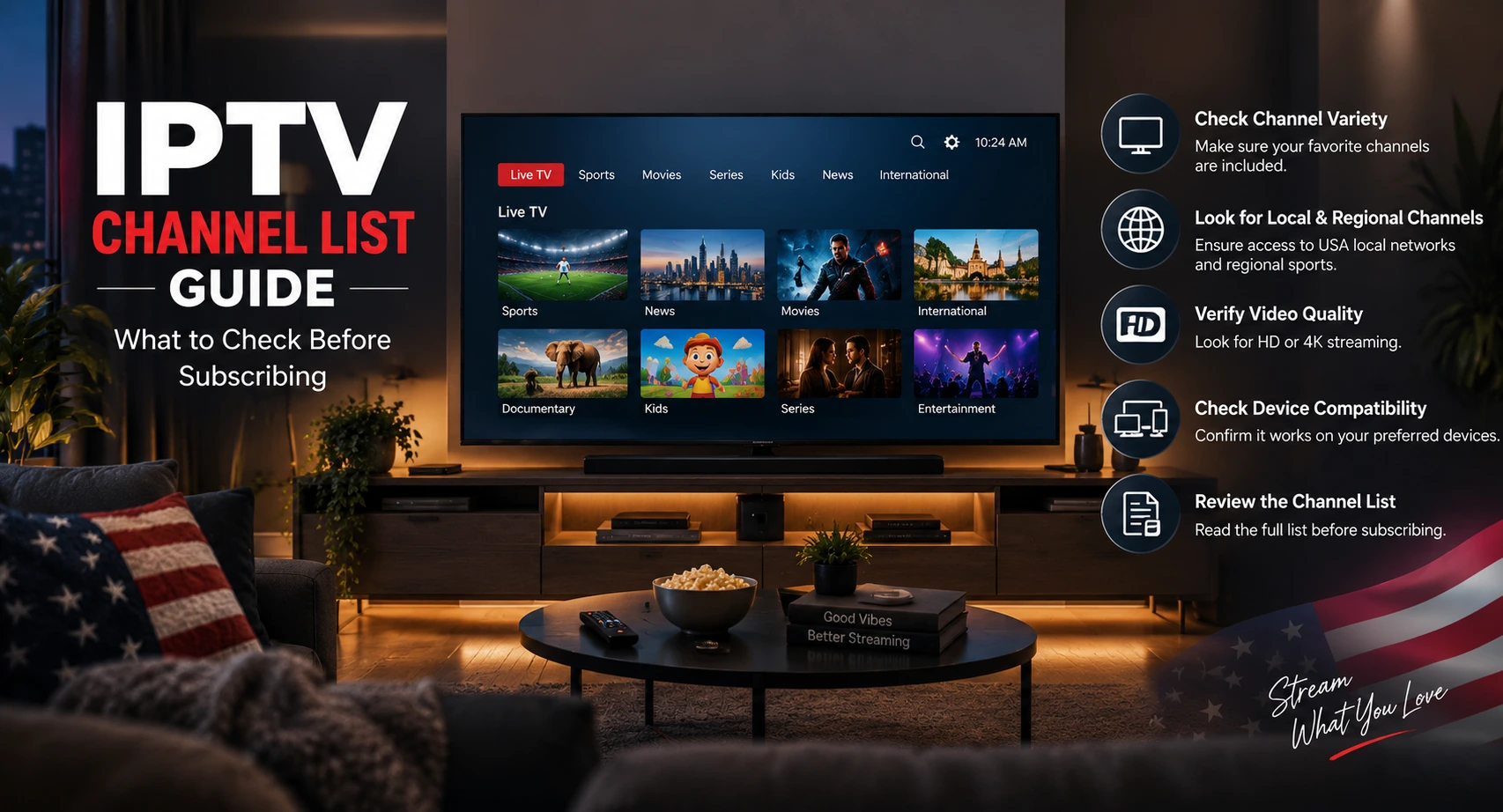
Choosing the right IPTV subscription in the USA is not only about finding a long channel list. Before subscribing, viewe...
Read Article
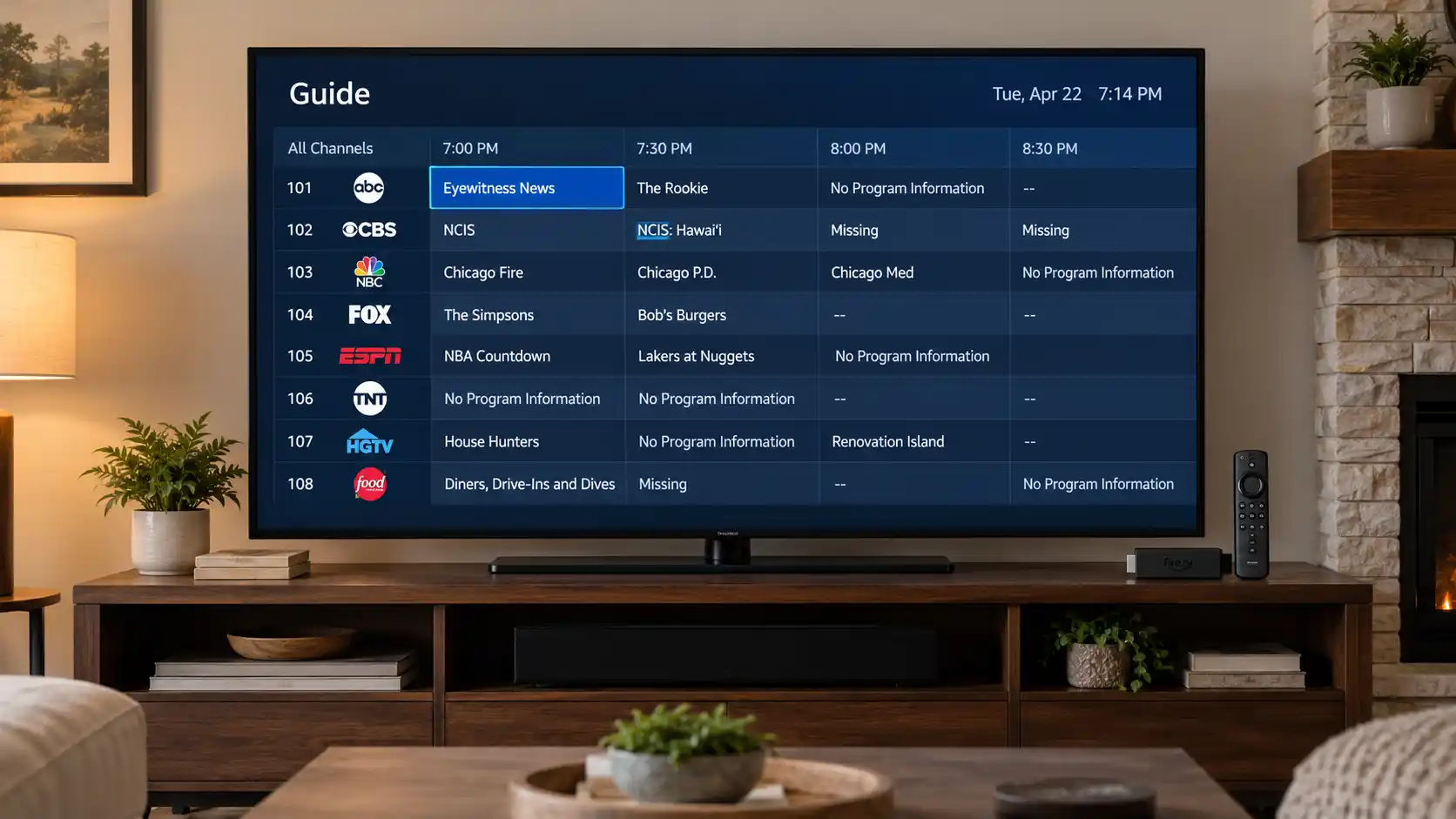
Is your IPTV EPG not working on Firestick, Android TV, or another streaming device? A missing TV guide can make it difficult to see what is playing now, check upcoming programs, and navigate between your favorite channels.
Some IPTV users encounter messages such as "No Information," "EPG Failed to Load," or "No Program Data" even when their live TV channels are working correctly.
The good news is that many electronic program guide problems can be resolved by refreshing the EPG, checking the guide source, correcting device settings, or updating your IPTV player.
In this guide, IPTVcrowds explains how to fix IPTV EPG not working, restore missing TV guide information, and troubleshoot common EPG problems on Firestick, TiviMate, IPTV Smarters Pro, and Android TV.
If your IPTV guide is missing or not updating, try these steps first:
These steps solve many common TV guide problems without requiring a new streaming device or a complete application reinstall.
EPG stands for Electronic Program Guide. It is the feature that displays television schedules, current programs, upcoming shows, and available program descriptions inside a compatible IPTV player.
Instead of switching between channels to discover what is playing, viewers can use the TV guide to browse available program information.
Depending on your IPTV application and guide source, EPG features may include:
It is important to understand that the IPTV player and the EPG data are not always provided by the same company. An IPTV application displays the information, while an external guide source or service provider supplies the schedule.
There are several reasons why an IPTV guide may stop displaying program information.
IPTV applications download program guide information and store it temporarily. If this information becomes outdated or the automatic update fails, the guide may display old schedules or empty program listings.
Some IPTV players receive guide data automatically through the subscription configuration. Others require a separate EPG URL.
If the guide source is missing, incorrect, expired, or unavailable, your channels may continue playing while their program information remains empty.
Incorrect application settings can prevent a TV guide from loading correctly. This may involve playlist assignments, guide update settings, or a mismatch between channels and guide data.
Your streaming device needs internet access to download updated program information. Temporary connection interruptions can prevent an EPG refresh from completing.
If program information appears one or more hours ahead or behind the correct broadcast time, the problem may be related to your device's time zone or daylight saving time settings.
This is especially relevant for viewers in the USA, where local time settings vary between regions.
Not every channel necessarily has program guide information available. Sometimes a guide source provides data for certain channels but not others.
If only a small number of channels are affected, the problem may be related to missing guide entries or channel mapping rather than your device.
Amazon Firestick and Fire TV devices are commonly used with compatible IPTV players. If your TV guide is missing, follow these troubleshooting steps.
Start by confirming that your Firestick is connected to a stable internet connection.
If possible, use a reliable 5GHz Wi-Fi connection or a compatible Ethernet adapter for improved connection stability.
Open the IPTV application installed on your Firestick.
Navigate to the settings section and look for an option labeled EPG, TV Guide, Refresh Guide, or Update EPG. The exact option depends on the application.
Start a manual refresh and allow sufficient time for the guide data to download.
Do not repeatedly restart the application while the update is still running.
If refreshing the guide does not work, restart your Firestick.
A restart can help resolve temporary application or network issues that interfere with downloading EPG information.
After restarting, reopen your IPTV player and check whether the guide has returned.
Some temporary application problems can be resolved by clearing cached data.
Important: Clearing the cache is different from clearing application data. Avoid selecting Clear Data unless you have backed up your playlists, login information, and settings.
If your IPTV player supports an external program guide, check whether the correct EPG source is configured.
Some providers supply an XMLTV guide URL, while other setups include EPG information in the account configuration.
If you are unsure which source to use, contact your provider rather than adding an unverified guide URL.
For additional Firestick setup guidance, read our guide to installing IPTV on Firestick.
TiviMate is an IPTV player used on compatible Android-based television devices, including certain Fire TV and Android TV setups.
If TiviMate displays "No Information" or outdated program schedules, the following checks may help.
The exact menu names may vary depending on the installed TiviMate version.
If the manual update does not restore the guide, examine the configured EPG sources and playlist assignments.
A valid guide source must be available to the playlist. If your setup requires an external XMLTV URL, use the one supplied by your authorized guide provider.
After correcting the source, refresh the guide again.
If every channel displays "No Information," investigate the EPG source and update process first.
If only a few channels display this message, check whether those channels are correctly associated with entries in the program guide.
Some versions of TiviMate support assigning guide information to individual channels.
Do not assume that changing your streaming subscription will automatically fix a missing guide. First identify whether the problem comes from the player configuration or the available EPG data.
IPTV Smarters Pro is another IPTV player used on supported devices. Its guide features and available settings can differ depending on the installed version.
If the TV guide is missing in IPTV Smarters Pro, try the following:
If your provider does not supply program guide data for the selected channels, refreshing the application may not solve the problem.
For more information about compatible devices and login methods, read our IPTV Smarters Pro setup guide for USA viewers.
Android TV devices and Android streaming boxes may experience EPG problems for similar reasons.
Start by checking the application, internet connection, and guide configuration.
If your application supports multiple guide sources, make sure the correct source is assigned to your playlist.
Remember that the streaming device displays the guide, but it cannot create missing program information if the source does not supply it.
One of the most common IPTV EPG problems is a guide that works for some channels but remains empty for others.
This can happen because the EPG source does not contain matching program information for every channel.
For example, a playlist might use one channel identifier while the electronic program guide uses a different identifier. Even if the channel plays normally, the IPTV application may not know which schedule belongs to it.
To investigate this problem:
Manual channel mapping should only be used when you can identify the correct guide entry. Assigning the wrong entry can display inaccurate schedules.
If your IPTV guide displays programs at the wrong time, the issue may be related to time zone settings or an offset applied by the application.
For USA viewers, this can become noticeable around daylight saving time changes.
Start by confirming that your device is configured for the correct local time zone.
Next, check whether your IPTV player applies an additional EPG time offset.
Avoid changing several settings at once. Make one adjustment, refresh the guide, and compare the displayed program time with a reliable schedule.
If the problem affects all channels, investigate your general time settings. If it affects only one or two channels, the source information for those channels may be incorrect.
A missing TV guide and an interrupted video stream are different problems.
EPG issues affect the information shown about current or upcoming programs. Live TV may continue playing even when program schedules are unavailable.
Buffering occurs when the video stream pauses while additional data loads. Freezing occurs when playback becomes stuck or interrupted.
These problems can be influenced by Wi-Fi strength, internet stability, device performance, app compatibility, or streaming server conditions.
If your video is freezing but the TV guide works correctly, the troubleshooting steps in this article may not address the underlying issue.
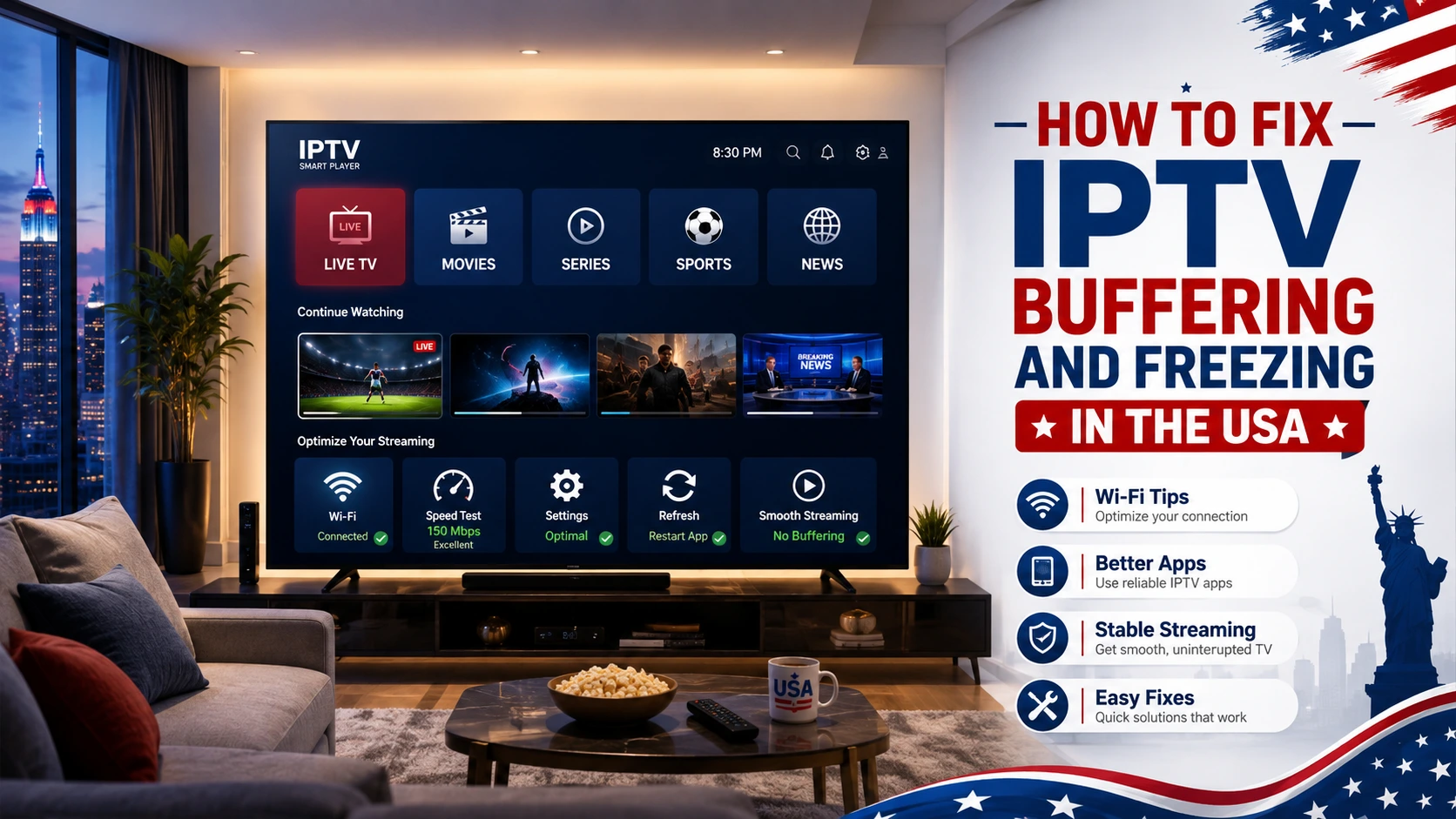
Instead, visit our IPTV buffering and freezing troubleshooting guide for more targeted advice.
Although not every program guide issue can be avoided, good maintenance habits can improve the reliability of your IPTV setup.
It is also helpful to avoid unnecessary configuration changes when your IPTV player is already functioning correctly.
If your EPG still does not work after checking your connection, application settings, time zone, and guide source, your provider may need to investigate.
Before contacting support, prepare the following details:
This information can make it easier for support to identify the cause without repeating the same basic troubleshooting steps.
For IPTVcrowds account and setup questions, visit our official website to find support and subscription information.
Your IPTV EPG may not work because of outdated guide information, an incorrect EPG source, internet problems, application settings, or missing schedules for certain channels. Refreshing the guide and checking its source are good starting points.
Open your IPTV player, navigate to the EPG or TV Guide settings, and select the refresh or update option. The exact steps depend on your IPTV application.
This message usually indicates that the player cannot display matching program information. The channel itself may still be available. Check the EPG source, channel mapping, and update status.
Open TiviMate, go to Settings, select EPG, and perform a manual update. If the guide remains empty, verify the EPG source and its association with your playlist.
Yes. An EPG is a program information feature. On many IPTV setups, live channels can continue working even when the TV guide is unavailable.
No. EPG coverage depends on the provider, available guide sources, selected channels, and supported applications. Confirm program guide availability before purchasing a subscription if this feature is important to you.
EPG availability depends on the IPTV application, compatible device, and program guide source. Not every Smart TV application supports the same guide features.
A good IPTV experience depends on more than the number of available channels. Your streaming device, IPTV player, internet connection, application configuration, and provider support all influence the viewing experience.
Before selecting an IPTV subscription, consider these important questions:
IPTVcrowds provides subscription options for compatible streaming devices and offers setup assistance to help users get started.
Before choosing a longer subscription, you can explore the available plans and consider the paid trial option to check whether the service meets your device and viewing needs.
If your IPTV EPG is not working, you do not necessarily need to replace your streaming device or change your subscription immediately.
Start with the simplest solutions: check your internet connection, refresh the electronic program guide, confirm the EPG source, and verify your device's time settings.
If you use TiviMate, IPTV Smarters Pro, or another compatible player, follow the troubleshooting steps for that application and contact your provider when program guide information is unavailable.
For viewers in the USA, a properly configured IPTV player, compatible device, reliable internet connection, and responsive support can make everyday streaming easier.
Looking for an IPTV subscription that works with your preferred streaming device? IPTVcrowds offers flexible plans for compatible Firestick, Smart TV, Android TV, Android boxes, smartphones, tablets, and other supported devices.
Our team can help you review device compatibility, choose a subscription duration, and understand the recommended setup process.
Explore IPTVcrowds to learn more about our available plans, subscription options, and customer support.
Before ordering, confirm the current package details, supported applications, channel availability, content licensing, and whether EPG information is included for your selected setup.
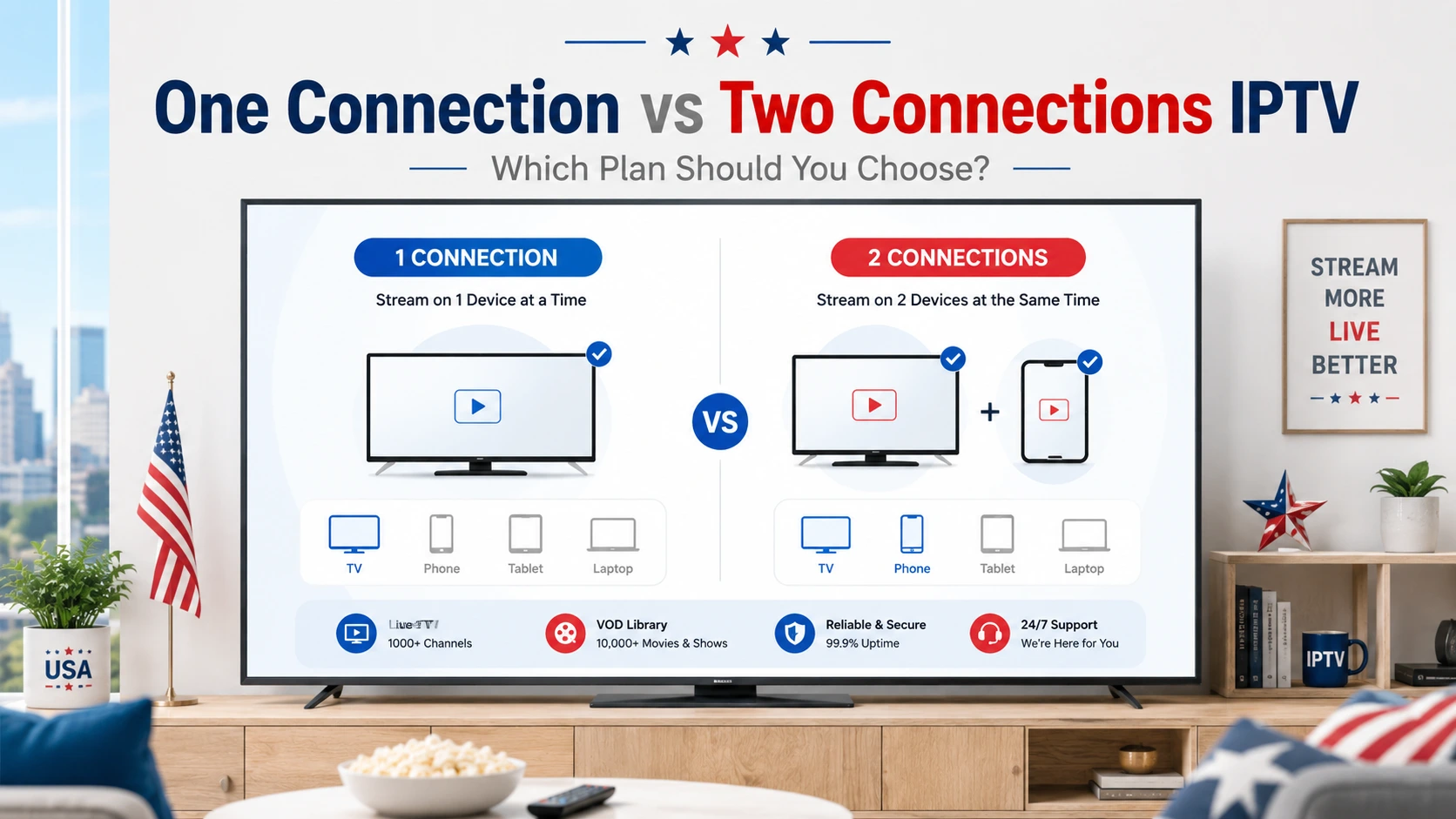
Choose the IPTVcrowds subscription duration that best suits your viewing needs and budget. The following prices are listed in US dollars for the standard one-connection options.
Want to check your device compatibility and streaming experience first? IPTVcrowds also offers a paid IPTV trial for $5.
The trial gives you an opportunity to evaluate the service before selecting a longer subscription. Confirm the included features, available channels, guide coverage, and trial terms with support.
© IPTVcrowds. All rights reserved.