IPTV Channel List Guide: What to Check Before Subscribing
Choosing the right IPTV subscription in the USA is not only about finding a long channel list. Before subscribing, viewe...
Read Article
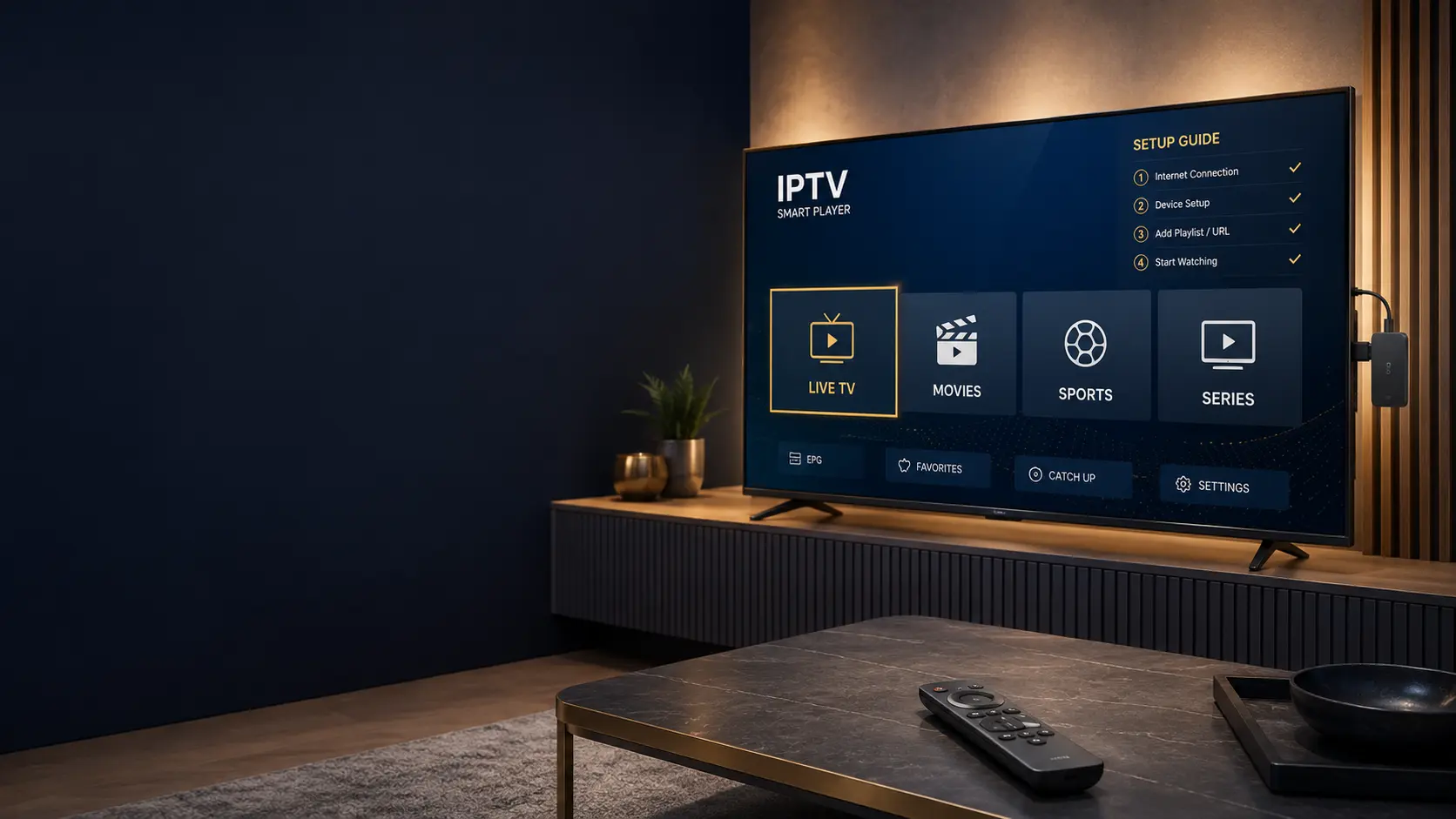
For viewers in the USA, Firestick and Fire TV devices are among the most popular ways to watch live TV, sports, movies, series, news, and international entertainment on a regular television. They are small, easy to connect, and practical for users who want a simple streaming setup at home.
With IPTVcrowds, users can enjoy a flexible IPTV setup on Firestick and other compatible devices such as Smart TV, Android TV, Android boxes, mobile phones, tablets, laptops, and desktop computers depending on device compatibility and the selected subscription plan.
This guide explains how to install IPTV on Firestick in 2026 with IPTVcrowds, what you should prepare before setup, which details to check, how to improve streaming quality, and how to avoid common Firestick problems.
If you are still comparing services, you can also read our guide about how to choose a reliable IPTV service in the USA.
Firestick is popular because it can turn a regular TV into a flexible streaming screen. Many users like it because it is simple to connect, easy to carry, and compatible with many streaming apps and IPTV players depending on the device version and app availability.
For IPTV users, Firestick can be useful for watching live TV, sports, movies, series, news, kids content, and international channels depending on the selected IPTV package and available channel list.
The best experience depends on using a compatible Firestick device, stable internet, enough storage, the correct IPTV app or player, and clear setup details from support.
Before starting the setup, make sure everything is ready. This can help avoid login errors, app problems, buffering, and slow performance.
Before choosing a longer subscription, it is better to confirm that your Firestick model is compatible and that support can guide you through the setup process.
Use this checklist before installing IPTV on Firestick. A clean setup can improve performance and reduce common problems.
| Setup Area | What to Check | Why It Matters |
|---|---|---|
| Device | Firestick or Fire TV model | Your device should be compatible and powerful enough for smooth streaming. |
| Internet | Stable Wi-Fi, 5GHz Wi-Fi, or Ethernet adapter when possible | Live TV and sports need a stable connection to reduce buffering. |
| Storage | Enough free space on the Firestick | Low storage can make apps slow, unstable, or difficult to update. |
| App | Compatible IPTV app or player | The right app helps improve navigation, loading, and playback. |
| Support | Setup help and login guidance | Good support helps solve setup problems quickly. |
The exact setup can depend on your Firestick version and the IPTV app recommended by support. However, most Firestick setups follow a similar process.
If you are not sure which app or login method to use, contact IPTVcrowds support before changing settings. This helps avoid unnecessary setup problems.
Firestick can work with different IPTV apps and players depending on availability, device compatibility, and provider recommendation. Not every app works the same way on every device, so it is better to follow the setup instructions given by support.
Some IPTV apps may use username, password, and server URL. Others may use playlist details or another setup method. The most important thing is to enter the information exactly as provided.
If you want to understand IPTV player apps better, read our guide about how to use IPTV Smarters Pro with IPTVcrowds in the USA.
Different IPTV apps may use different login methods. Support should tell you which option is correct for your account and device.
| Login Method | What It Usually Requires | Important Tip |
|---|---|---|
| Username and Password | Account details provided by support | Copy the details carefully and avoid extra spaces. |
| Server URL | A server link with your username and password | Make sure the URL is entered exactly as provided. |
| M3U Playlist | A playlist URL or file details | Long links must be copied carefully to avoid login errors. |
| App-Specific Login | Instructions based on the app and device | Ask support which method is best for your Firestick. |
The content available on Firestick depends on your selected IPTV package, device compatibility, region, and channel list. Before choosing a plan, always confirm what is included.
Popular categories that viewers often look for include:
For movies and series, you can read our guide about enjoying new movies and series with IPTVcrowds in the USA.
If you are interested in live soccer, read our article about IPTV for live soccer in the USA.
Firestick streaming quality depends on your internet connection, Wi-Fi signal, device storage, app performance, and subscription setup. If the device is overloaded or the connection is weak, you may experience buffering, freezing, slow loading, or app crashes.
To improve IPTV streaming on Firestick, follow these tips:
For live TV and sports, stability is especially important because the content happens in real time. Preparing your Firestick before watching can help reduce interruptions.
Firestick is a practical option for many users, but it is not the only device that can work with IPTVcrowds. The best choice depends on your home setup, internet connection, and viewing habits.
| Device | Best For | Important Note |
|---|---|---|
| Firestick | Simple TV setup and flexible app support | Keep storage clean and use strong Wi-Fi for better performance. |
| Smart TV | Watching directly on a TV without extra devices | App availability depends on the TV brand and app store. |
| Android TV / Android Box | Flexible app setup and strong device control | Works best with updated devices and stable internet. |
| Mobile / Tablet | Portable access and quick testing | Useful for travel or checking account access. |
| Laptop / Desktop | Desk viewing or testing subscription details | Use a compatible player or browser setup when supported. |
You can also read our IPTV USA multi-device streaming guide to compare different devices.
Most Firestick IPTV problems can be solved by checking the app, device, internet connection, and login details.
If the problem continues, send support your Firestick model, app name, and a short description of the issue so they can guide you faster.
Testing IPTV on Firestick before choosing a longer plan can help you confirm compatibility, streaming quality, app performance, and support response.
During a trial or short test option, check live TV, sports, movies, series, news, and international categories if included in your package. Also test during the time you usually watch TV.
For more details, read our guide about how to get a free trial IPTV USA with IPTVcrowds.
Before subscribing, ask clear questions so you know exactly what to expect from your IPTV setup.
A professional provider should be clear about compatibility, package details, support, and current plan options.
Firestick is only a streaming device. Users should always choose services and content sources that respect applicable laws, broadcasting rights, and content ownership. IPTV technology itself is legal, but content access must be responsible and properly authorized.
Be careful with services that make unrealistic promises, hide their identity, provide no support, or give unclear refund conditions. A professional provider should be transparent about setup, support, service use, and package details.
For more details, read our guide: Is IPTV Legal? What You Need to Know Before Subscribing.
IPTVcrowds can be a practical option for viewers in the USA who want a simple IPTV setup on Firestick and other compatible devices. The service can support live TV, sports, movies, series, news, and international entertainment depending on the selected package.
For Firestick users, IPTVcrowds focuses on:
Before subscribing, confirm Firestick compatibility, recommended app, package details, number of connections, and current plan options with support.
Installing IPTV on Firestick in 2026 can be simple when you use a compatible device, stable internet, the correct app, and clear setup details. The most important step is to confirm compatibility before choosing a longer subscription.
With IPTVcrowds, Firestick users can get setup guidance and choose a subscription that matches their viewing needs. Before choosing a plan, make sure your device is ready, your internet connection is stable, and your app setup is correct.
At IPTVcrowds, we are here to help users in the USA build a simple and reliable IPTV setup on Firestick. Whether you want live TV, sports, movies, series, news, or international channels, our goal is to make setup easier and clearer.
For Firestick setup help, device compatibility questions, trial availability, or subscription details, feel free to reach out to us on WhatsApp or email us at happitv049@gmail.com.
Visit our website for more details: iptvcrowds.com.
© IPTVcrowds. All rights reserved.