IPTV EPG Not Working? How to Fix Missing TV Guide on Firestick
Is your IPTV EPG not working on Firestick, Android TV, or another streaming device? A missing TV guide can make it diffi...
Read Article
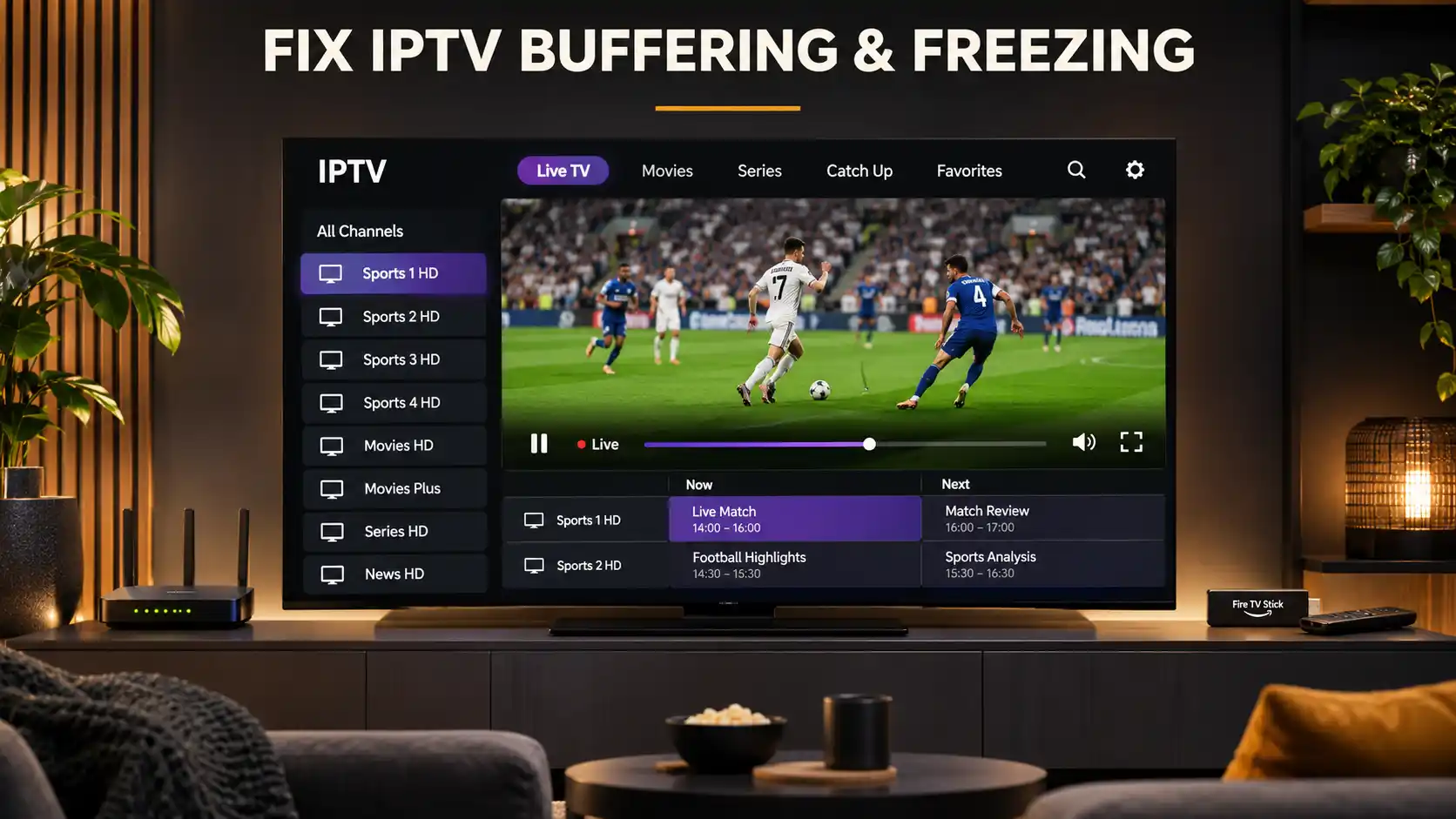
Is your IPTV constantly buffering, freezing, or stopping in the middle of a movie, live TV channel, or football match? These interruptions can make streaming frustrating, but they do not always mean that your subscription or streaming provider is the problem.
IPTV buffering can be caused by unstable Wi-Fi, internet congestion, application errors, device limitations, connection restrictions, or problems with the streaming source. The right solution depends on identifying which part of your setup is causing the interruption.
Whether you use Amazon Firestick, Samsung Smart TV, LG Smart TV, Android TV, Google TV, an Android box, smartphone, tablet, or computer, this guide explains how to diagnose IPTV buffering and freezing step by step.
These troubleshooting tips can help viewers in the United States, United Kingdom, Ireland, Canada, Australia, New Zealand, South Africa, and other countries. The basic diagnostic process is similar wherever you live, although internet conditions and device compatibility may vary.
If your IPTV keeps buffering, start with these practical checks before changing advanced application settings or replacing your subscription.
The most important step is to identify whether the interruption affects one channel, one application, one device, or your entire internet connection.
Although the terms are often used together, IPTV buffering and IPTV freezing describe different problems.
Buffering happens when the streaming application temporarily pauses playback while waiting for additional video data.
You may notice a loading circle, repeated interruptions, or a video that starts and stops frequently.
Some buffering is normal when a stream first begins, but repeated interruptions can indicate problems with the network, application, device, or content delivery.
Freezing occurs when the picture stops moving unexpectedly.
Sometimes the audio continues while the video remains frozen. In other situations, both picture and sound stop.
A frozen image may result from application errors, video decoding problems, network interruptions, or difficulties with the stream itself.
An application crash happens when the IPTV player closes unexpectedly, returns to the home screen, or stops responding entirely.
This can be related to outdated software, limited device memory, incompatible settings, or an application defect.
Understanding the difference helps you choose the appropriate troubleshooting steps.
IPTV streaming depends on several connected systems. Your internet connection receives data from a content delivery source, while the streaming application processes and displays the video on your device.
Problems can occur at any point in this process.
| Possible Cause | Common Symptoms | What to Check |
|---|---|---|
| Unstable Wi-Fi | Frequent loading, interruptions, or inconsistent quality. | Signal strength, distance from the router, and interference. |
| Internet Congestion | Buffering during busy hours or large downloads. | Other connected devices and network activity. |
| Application Problems | Freezing menus, crashes, or playback errors. | Application updates, cache, and compatibility. |
| Device Limitations | Slow navigation, overheating, or repeated app crashes. | Available storage, software version, and hardware performance. |
| Streaming Source Problems | One channel fails while others work. | Compare available authorized streams and contact the provider. |
| Connection Limits | Playback stops when another device starts streaming. | Number of simultaneous connections included in the plan. |
| Network Routing Issues | Unstable access to particular services despite normal general browsing. | Connection reliability and provider diagnostics. |
Do not assume that every buffering problem is caused by slow IPTV servers. Testing different parts of your setup helps identify the actual cause.
A stable internet connection is essential for IPTV playback.
Even when your internet plan advertises high download speeds, temporary network congestion, packet loss, or an unstable wireless signal can interrupt streaming.
If multiple services experience interruptions, your home internet connection may need attention.
If other streaming applications work normally but one IPTV service consistently fails, the issue may be specific to that player, account, content source, or network route.
The bandwidth required for IPTV depends on video resolution, bitrate, compression format, frame rate, and the number of simultaneous streams.
HD video generally requires less bandwidth than high-bitrate 4K video, but two streams with the same resolution may have different requirements.
Check the streaming provider's recommended connection speed for the actual content you intend to watch.
Remember that a speed test measures performance to its testing server. It does not directly measure the stability of every IPTV stream.
Wi-Fi problems are among the common causes of intermittent streaming.
A television or streaming stick positioned far from the router may receive an unstable signal, even when other devices in the house appear to work normally.
If possible, reduce the distance between the router and your streaming device.
Avoid placing the router inside closed cabinets or behind large objects that can interfere with wireless reception.
Many modern routers offer both 2.4 GHz and 5 GHz Wi-Fi networks.
The best option depends on your router, the location of the device, and surrounding network conditions.
Test the available connections instead of assuming one band will always perform better.
A wired Ethernet connection can reduce problems caused by wireless interference.
Many Smart TVs and Android TV boxes support Ethernet directly. Some streaming sticks require a compatible adapter.
If your device and home setup support it, Ethernet is worth testing when Wi-Fi interruptions are frequent.
Restarting your equipment is a simple way to resolve temporary network or application problems.
Avoid performing a factory reset of your router unless you understand the configuration requirements or have been instructed to do so by your internet provider.
Streaming applications store temporary files that can help with normal operation.
Occasionally, outdated or damaged cached data may contribute to application problems.
Clearing the cache can help in some cases, but it does not solve network congestion or unavailable content sources.
Menu names may vary according to your Fire TV software version.
Important: Clear Cache is different from Clear Data. Clearing application data may remove saved credentials, playlists, preferences, or other settings.
The exact settings depend on the device manufacturer and Android TV or Google TV version.
Android smartphones may provide a cache-clearing option under Settings and Apps.
On iPhone and iPad, the available application management options differ. Some problems may require updating the application or following the developer's instructions.
Avoid deleting an application unless you have the information necessary to restore your account and settings.
An outdated streaming application can experience compatibility issues, crashes, or unexpected playback behavior.
System updates may also include improvements to video playback, security, and device stability.
Before installing updates:
Use official application stores or trusted developer sources where possible.
Do not install unknown software or modified applications simply because they promise to eliminate IPTV buffering.
Amazon Firestick is widely used with compatible television streaming applications.
However, performance can be affected by limited storage, background activity, network reception, and application compatibility.
If the problem only happens in one IPTV player, compare its behavior with another properly configured, compatible application when the provider permits it.
For more installation guidance, read our How to Install IPTV on Firestick in 2026.
Samsung and LG Smart TVs provide convenient television viewing through compatible applications.
However, available apps and system settings vary between brands and television models.
Some Smart TV systems do not provide the same cache controls found on Android devices.
Avoid following generic instructions that do not apply to your television's operating system.
For more information, visit our IPTV for Smart TV: Setup, Apps and Streaming Tips guide.
Android TV and Android boxes vary significantly in hardware quality, memory, storage, and software support.
Two devices using similar applications may deliver different playback experiences.
If the application crashes even while navigating menus, the problem may be related to the application or device rather than the streaming source.
Avoid changing advanced decoder settings without understanding their purpose or following the application's documentation.
Sometimes one television channel buffers continuously while other channels work normally.
This pattern is different from a problem affecting every streaming application on your device.
If one authorized stream fails while others play normally:
The cause may involve that particular source, its delivery route, the available video format, or a temporary service problem.
Repeatedly restarting your router is unlikely to fix a problem that consistently affects only one unavailable source.
Many viewers experience buffering despite having a fast broadband connection.
This happens because internet speed is only one factor in streaming performance.
A speed test may show excellent download speeds while your streaming session experiences packet loss, Wi-Fi interference, inconsistent delivery, or application problems.
Other possible factors include:
For a more detailed explanation of streaming infrastructure, read our Premium IPTV Streaming: Speed, Stability and Device Performance Guide.
A simple comparison can help narrow down the cause of repeated interruptions.
| Test Result | Possible Explanation | Recommended Next Step |
|---|---|---|
| Several unrelated streaming apps buffer. | Internet, Wi-Fi, device, or network congestion. | Check local network conditions and device performance. |
| Only one IPTV application has problems. | Application, account, source, or service-specific issue. | Check the app and contact the provider. |
| One device fails but others work. | Device, application installation, or local connection problem. | Update and troubleshoot the affected device. |
| Problems occur mainly during busy hours. | Possible network congestion or changing service demand. | Compare connection stability at different times. |
| Only one channel has problems. | Source-specific or content-availability issue. | Contact the authorized content provider. |
| Playback stops when another device starts. | Possible simultaneous-connection restriction. | Review the subscription's connection limits. |
| The app closes without a loading screen. | Possible application crash or device limitation. | Check updates, cache, and storage. |
These observations are clues rather than definitive proof of the cause.
A provider or internet service technician may need additional diagnostic information to identify complex problems.
Yes. Multiple devices can share the same home internet connection.
Large downloads, video calls, online gaming, cloud backups, and other streaming sessions may compete for available bandwidth.
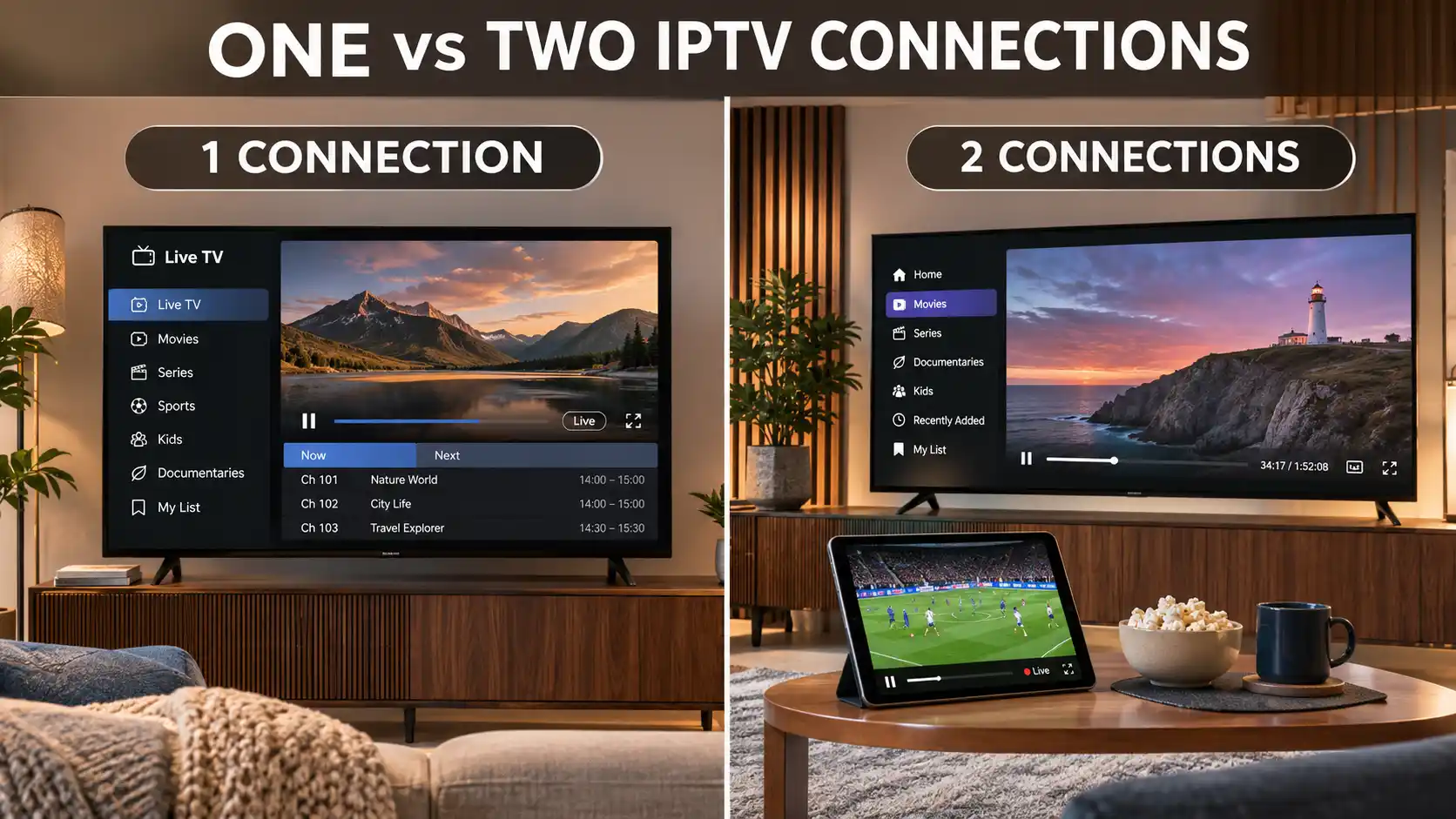
You should also distinguish between home network capacity and IPTV subscription connection limits.
For example, having enough broadband capacity for two streams does not automatically mean that your IPTV subscription permits two simultaneous connections.
If you need several active streams, confirm that the selected plan supports them.
Read our One Connection vs Two Connections IPTV Guide to compare household viewing needs.
A VPN changes how internet traffic is routed and may affect connection performance.
In some circumstances, a different network route may perform differently. However, a VPN can also introduce additional latency, reduce available throughput, or cause compatibility problems.
It is not a universal solution for IPTV buffering.
Before changing network settings, troubleshoot your local connection, device, and application.
If you use a VPN for legitimate privacy reasons, confirm that its use is compatible with your streaming provider's terms.
Do not use a VPN to bypass broadcasting restrictions or access content without authorization.
Some streaming players provide options for video decoding, playback buffers, audio tracks, or supported media formats.
These settings may influence compatibility with particular devices and streams.
However, increasing a playback buffer or switching decoding methods will not necessarily resolve an unstable content source or internet connection.
Changes should be based on the player developer's documentation and the provider's setup instructions.
If you use IPTV Smarters Pro or another compatible player, check that the application is correctly configured and updated.
For general setup guidance, explore our IPTV Smarters Pro Setup Guide.
There is no method that guarantees completely interruption-free streaming under every network condition.
However, good device maintenance and a reliable home network can reduce many avoidable problems.
Install appropriate operating system and application updates from trusted sources.
Check your Wi-Fi coverage, router placement, and overall network demand.
Choose streaming players supported by your device and content provider.
Limit large downloads and other bandwidth-heavy tasks during important viewing sessions when they affect playback.
Make sure that the number of simultaneous streams stays within your subscription conditions.
Open your authorized streaming application before a major sports event to confirm that the account and device are working correctly.
If an issue returns, record the device model, application, approximate time, affected channel, and any error message before contacting support.
Use this checklist whenever streaming becomes unstable.
| Check | Action |
|---|---|
| Internet | Test connection stability and compare other services. |
| Wi-Fi | Improve signal or test Ethernet where supported. |
| Device | Restart and check available storage. |
| Application | Update and clear cache when appropriate. |
| Network Demand | Pause unnecessary downloads and other heavy activity. |
| Video Source | Compare authorized streams to identify source-specific problems. |
| Connections | Confirm your simultaneous-stream allowance. |
| Support | Report persistent issues with useful technical details. |
Follow the checks systematically instead of changing several unrelated settings at once.
If you cannot resolve the issue, contacting support with detailed information can make troubleshooting more effective.
Include:
Do not share passwords or sensitive account information in public discussions.
Use the service provider's official support channel when account verification is required.
At IPTVcrowds, customers can contact support for assistance with compatible streaming devices, application setup, subscription details, and general playback troubleshooting.
If you experience buffering, provide the device details, affected content, and approximate time of the interruption so the support team can better understand the issue.
Before choosing a longer subscription, you can also explore the currently advertised testing option to evaluate basic service compatibility with your device and home connection.
Read our IPTVcrowds $5 Trial Guide for more information.
Streaming performance may vary depending on network conditions, device compatibility, content source, and location. No IPTV provider can guarantee that buffering will never occur.
IPTV buffering can result from unstable Wi-Fi, network congestion, insufficient consistent bandwidth, application problems, device limitations, or an issue with the streaming source.
Start by testing other streaming apps, restarting your device, checking your network, updating the player, and comparing available authorized streams. If the issue continues, contact the service provider.
Restart your Firestick, check Wi-Fi reception, update the device and player, clear the affected application's cache, and remove unnecessary apps if storage is limited.
Possible causes include unstable network connectivity, application compatibility problems, outdated software, or issues with the stream itself. Test other apps and follow the television manufacturer's troubleshooting instructions.
Freezing may be caused by application errors, limited device resources, incompatible video formats, network instability, or source problems. Check updates, cache, device performance, and connection stability.
High download speeds do not eliminate packet loss, wireless interference, network congestion, application errors, or unstable content delivery. A speed test alone cannot determine the performance of every IPTV stream.
Ethernet may improve stability by reducing Wi-Fi-related interference and signal problems, provided your device and network support a suitable wired connection.
Clearing cache is generally the less disruptive first step when supported. Clearing application data may remove logins, playlists, saved preferences, and configuration details.
Yes. Problems with the content delivery infrastructure can affect stream loading and playback. However, buffering may also originate from the viewer's network, application, or device.
The problem may be specific to that content source, available video format, network route, or broadcasting availability. Compare other authorized streams and report persistent issues to the provider.
A VPN is not a guaranteed solution. It changes network routing and may improve or worsen performance depending on the circumstances. It should not be used to bypass licensing or geographic restrictions.
That depends on how many devices will actively stream at the same time. Review your provider's connection rules before choosing a subscription.
IPTVcrowds currently advertises a $5 trial option. Contact support to confirm the duration, included features, eligibility, and applicable terms before ordering.
No provider can guarantee that all buffering will be permanently eliminated. Streaming depends on several systems, including the internet connection, device, application, and content delivery network.
When IPTV keeps buffering or freezing, the most effective approach is to identify the source of the problem before changing settings or purchasing another subscription.
Start with simple checks: compare other streaming applications, restart your device, check the internet connection, improve Wi-Fi reception, and confirm that your IPTV player is updated.
If the problem affects only one content source, contact the authorized provider. If all streaming services experience similar interruptions, focus on your local network or device.
Whether you watch from the USA, UK, Ireland, Canada, Australia, New Zealand, South Africa, or another country, these troubleshooting steps can help you make informed decisions and maintain a more reliable streaming setup.
For a broader explanation of technical streaming performance, explore our Premium IPTV Streaming Guide.
Looking for information about IPTV subscriptions, compatible devices, or assistance with streaming setup?
Visit IPTVcrowds to review the available plans and contact the support team about device requirements, installation, connection options, and current subscription details.
You can also learn about our testing option in the IPTVcrowds $5 Trial Guide.
Contact IPTVcrowds:
Before choosing a longer subscription, you can review the IPTVcrowds $5 Trial to ask about the available testing option for your preferred streaming device.
The exact trial duration, supported features, available content, eligibility, and restrictions should be confirmed with the support team before payment.
IPTVcrowds also advertises subscription options with different durations.
These are advertised reference prices for the base connection option. Additional connection options may affect the final checkout total.
Before purchasing: Confirm current pricing, device compatibility, connection limits, trial conditions, subscription terms, content availability, geographic restrictions, and applicable distribution rights.
If you need assistance selecting a suitable plan or troubleshooting your setup, contact IPTVcrowds on WhatsApp.
© IPTVcrowds. All rights reserved.