IPTV EPG Not Working? How to Fix Missing TV Guide on Firestick
Is your IPTV EPG not working on Firestick, Android TV, or another streaming device? A missing TV guide can make it diffi...
Read Article
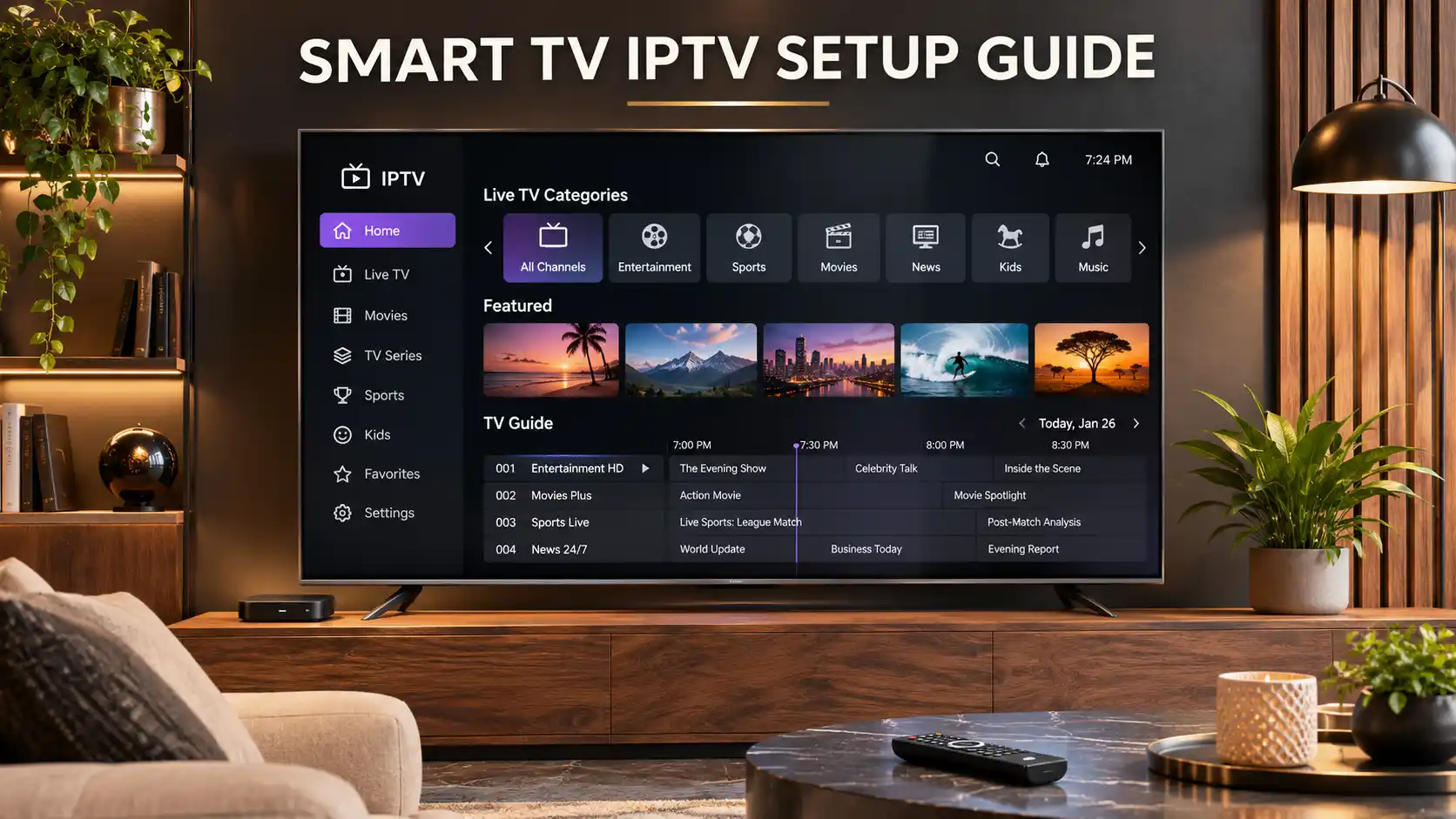
Looking for the best IPTV for Smart TV? Whether you own a Samsung television, LG Smart TV, Android TV, or Google TV, the first step is understanding which streaming applications are compatible with your device and how to configure them correctly.
A Smart TV can be a convenient way to enjoy internet-based television without using a separate streaming device. However, not every television supports the same applications, login methods, or video formats.
The setup process also varies depending on your television's operating system. Samsung Smart TVs commonly use Tizen, LG televisions use webOS, and many other brands offer Android TV or Google TV.
In this guide, we explain how to install compatible IPTV applications on different Smart TV platforms, understand subscription login details, choose between built-in apps and external streaming devices, and solve common installation problems.
These instructions are useful for viewers in the United States, United Kingdom, Ireland, Canada, Australia, New Zealand, South Africa, and other countries. Application availability and content access may vary by region.
To set up IPTV on a Smart TV, identify your television's operating system, find a compatible streaming application in its official app store, and follow the application's supported login process using valid details from your authorized content provider.
Before installing anything, remember that an IPTV player and an IPTV subscription are different products. A player usually provides the interface, while an authorized content provider supplies access to television programming.
The best IPTV setup for Smart TV is not necessarily the one advertising the most channels or the highest resolution.
A suitable setup combines device compatibility, application usability, authorized content access, network stability, and clear subscription conditions.
When comparing your options, consider:
A convenient streaming setup should work with your existing equipment rather than require unnecessary purchases or complicated modifications.
Different television brands use different operating systems. This affects which streaming applications can be installed and how they are updated.
| Smart TV Platform | Operating System | Application Installation | Important Consideration |
|---|---|---|---|
| Samsung Smart TV | Tizen on many modern models | Samsung Apps or Smart Hub | Application support varies by model and region. |
| LG Smart TV | webOS | LG Apps or the TV's app store | Check webOS version and regional availability. |
| Android TV | Android TV OS | Google Play Store | Only compatible TV applications appear in the store. |
| Google TV | Google TV interface on Android TV OS | Google TV Apps and search | Availability depends on device and country. |
| Roku TV | Roku OS | Roku Store | Only supported Roku applications can be installed. |
| Other Smart TVs | Varies by manufacturer | Manufacturer-specific app store | Check the exact model before choosing a player. |
An IPTV application designed for Android does not automatically run on Samsung Tizen, LG webOS, or Roku OS.
Always confirm compatibility before paying for a subscription or purchasing an external streaming device.
Many Samsung Smart TVs use the Tizen operating system and provide access to compatible applications through Samsung's built-in app store.
The exact installation steps can vary depending on the television model and software version.
Open the television's network settings and connect using Wi-Fi or Ethernet.
Confirm the connection by opening an existing internet-based application.
Select Install and follow the on-screen instructions.
After installation, open the application from the television's home screen or apps menu.
If the app is not available, it may not support your television model, software version, or country.
Choose the supported login method and enter the valid details provided by your authorized content provider.
Some applications require a username, password, and server address. Others support playlists or a different activation process.
Use only the connection method supported by both the application and your subscription.
Once configuration is complete, check that the available content loads correctly and that your television remote can navigate the application.
If you encounter problems, restart the application, check your internet connection, and verify your account details before changing advanced settings.
Official reference: Samsung Smart TV Application Guide.
LG Smart TVs commonly use the webOS operating system.
Unlike Android TV, webOS uses its own application environment. This means Android APK files are not a standard installation method for LG Smart TVs.
Find your television model and webOS version in the device settings.
Confirm that the television is connected to the internet and that the correct country or region is configured.
Menu labels may differ between webOS versions.
After installation, open the player and follow its supported login process.
Enter only the configuration information supplied by an authorized provider.
Check whether the application responds correctly to remote-control commands and whether the available programming loads as expected.
If you cannot find the application:
If no suitable built-in application is available, an external streaming device may be a practical option.
Official reference: LG Guide to Installing and Managing TV Applications.
Android TV is used by many television brands and streaming boxes. It offers access to compatible television applications through the Google Play Store.
Application availability depends on the device, Android TV version, region, and developer support.
A smartphone application is not necessarily optimized for television. Choose versions designed for Android TV when available.
Avoid installing applications from unknown websites or sources that cannot be verified.
Google TV provides a television interface built on the Android TV operating system.
Although Google TV and Android TV share technology, their home screens and navigation menus can look different.
If the application does not appear, confirm that it supports your device and country.
Official reference: Google TV Help: Install Applications.
Roku TVs use Roku OS and have a separate application environment.
Roku does not use the same application installation system as Android TV, Samsung Tizen, or LG webOS.
To check for a supported application:
Not every IPTV player is available for Roku.
If your preferred application is missing, do not assume that an Android installation file will work on Roku OS.
You may need a different supported application or a separate streaming device connected to the television.
Official reference: Roku Support: How to Add Applications.
One of the most confusing parts of IPTV setup is choosing the correct login method.
Different applications use different systems for accessing subscription information.
| Connection Method | Information Usually Required | Important Note |
|---|---|---|
| Username and Password Login | Account credentials and sometimes a server address. | Use the exact details supplied by the provider. |
| M3U Playlist | A valid playlist URL or supported playlist file. | Availability depends on app and provider compatibility. |
| Portal-Based Connection | A provider-supported portal address or activation information. | Not every player supports portal connections. |
| Application Activation | Activation code, account authorization, or similar details. | The process depends on the application developer. |
| Official Streaming Service Account | Broadcaster-specific login or subscription activation. | Use the authorized service's own instructions. |
A playlist or login method does not itself establish whether the content has been licensed for distribution.
Always use subscription information from a provider authorized to offer the programming in your region.
An IPTV player is an application used to organize and display television streams.
An IPTV subscription is a separate arrangement that may provide access to specific programming and service features.
Installing a player does not automatically include television channels, premium sports events, movies, or other protected content.
Before choosing a player, confirm:
For more information about compatible players, explore our IPTV Smarters Pro Setup Guide.
A built-in Smart TV application can be convenient because it requires no additional hardware.
However, an external streaming device can be useful when the television's app store does not provide a suitable application or the television software is no longer supported.
| Device | Best Suited For | What to Consider |
|---|---|---|
| Built-In Smart TV App | Viewers who prefer a simple setup using their existing television. | App availability, TV software and remote compatibility. |
| Amazon Firestick | Viewers using compatible Fire TV streaming applications. | Supported apps, Fire TV version and network setup. |
| Android TV Box | Viewers who want a separate Android TV environment. | Hardware quality, software support and app compatibility. |
| Google TV Device | Viewers who prefer Google TV navigation and supported apps. | Device support, region and app availability. |
| Computer Connected to TV | Viewers using compatible browser-based or desktop streaming platforms. | Display connection, audio output and service support. |
Before buying additional hardware, test whether your existing Smart TV can run the application you need.
For Fire TV installation instructions, read How to Install IPTV on Firestick in 2026.
The best application depends on the device and the features you actually need.
Rather than selecting a player based only on popularity, evaluate its usability and compatibility.
| Feature | What to Check |
|---|---|
| Operating System | Does the app support Samsung Tizen, LG webOS, Android TV, Google TV or Roku OS? |
| App Store Availability | Can the app be installed through your television's supported store? |
| Login Method | Does it support the connection method provided with your subscription? |
| Remote Navigation | Are menus, categories and playback controls comfortable to use? |
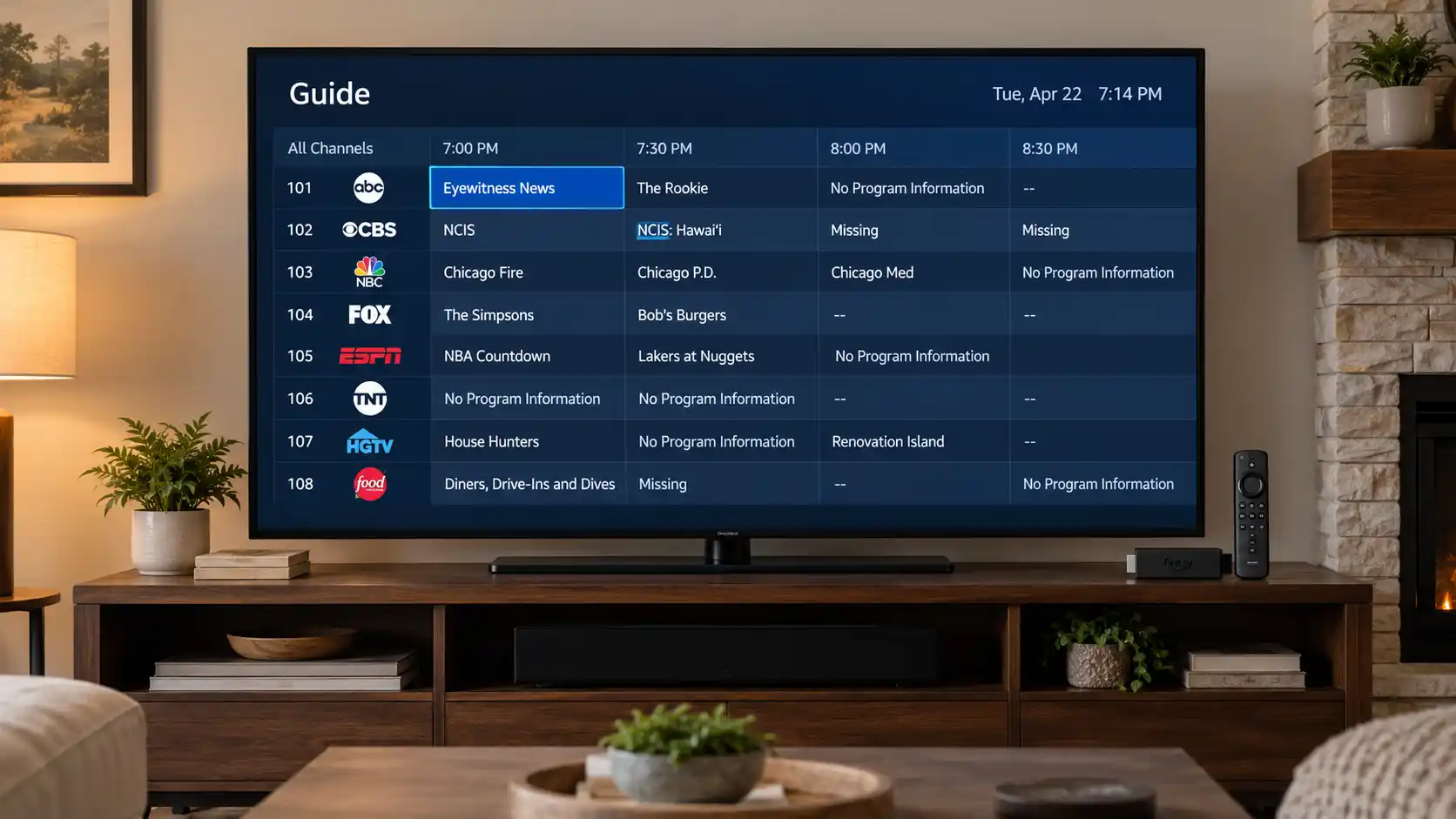
| Electronic Program Guide | Can it display available guide information when the provider supplies it? |
| Favorites and Search | Can you organize and find available programming? |
| Software Updates | Does the developer maintain the application? |
| Security | Is the application distributed by a trustworthy developer? |
| Pricing | Is there a separate player activation fee or subscription cost? |
Keep in mind that a player with more features does not guarantee better streaming quality.
The content source, internet connection and device performance also influence playback.
Smart TV applications may support different types of internet-based television programming, depending on the provider, licensing arrangements and selected subscription.
Viewers commonly look for:
The availability of these categories does not mean that every Smart TV application or IPTV subscription includes them.
Before subscribing, verify the content included in your selected package and whether the provider has the necessary distribution rights for your country.
If you are interested in football, read our Best IPTV for Live Soccer Guide.
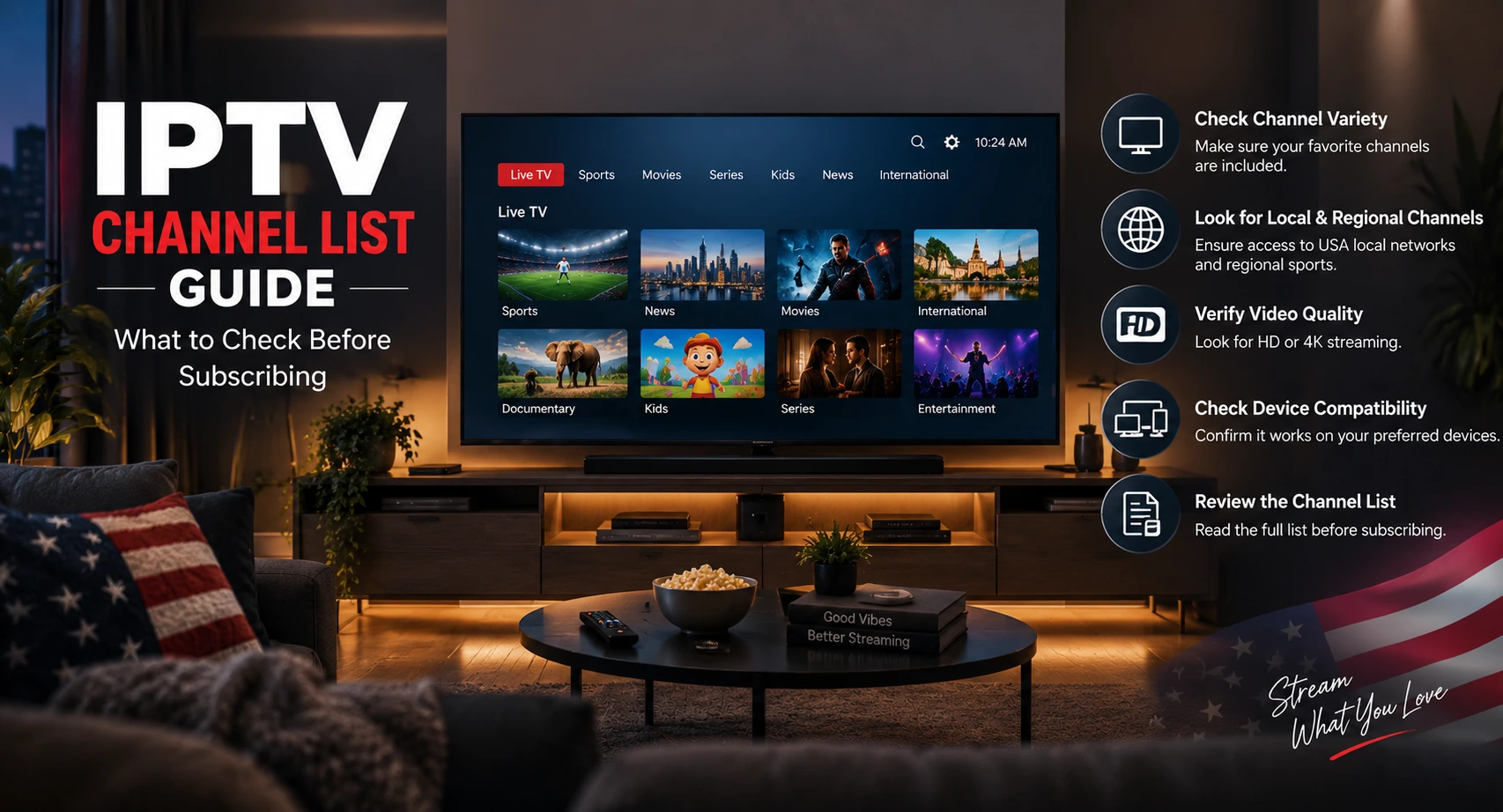
For broader channel comparisons, explore our IPTV Channel List Guide.
Some Smart TV setup problems are caused by incompatible applications, incorrect login details, insufficient storage or network issues.
The following table can help you identify the appropriate first step.
| Problem | Possible Cause | Recommended Action |
|---|---|---|
| App Not Found | Unsupported operating system, model or region. | Check official app availability and compatible alternatives. |
| App Will Not Install | Storage, account, software or internet problem. | Check available storage, account settings and updates. |
| Login Error | Incorrect credentials, server address or unsupported connection method. | Verify details and confirm the app's required login format. |
| Black Screen | Playback incompatibility, unavailable source or application problem. | Test other authorized content and restart the app. |
| Categories Not Loading | Account, playlist, network or provider issue. | Check the connection and ask support to verify configuration. |
| Missing TV Guide | Unavailable, outdated or incorrectly loaded guide data. | Refresh the EPG if supported and confirm the provider supplies it. |
| Remote Not Responding Properly | Application interface incompatible with TV controls. | Check app compatibility or use a supported alternative. |
| App Crashes | Software incompatibility or device limitations. | Restart the TV, update the app and check storage. |
If the application fails repeatedly, record your television model, operating system version, app name and any error messages before contacting support.
An application that works on an Android phone or Android TV box may not have a version designed for Samsung Tizen or LG webOS.
Application availability can also depend on geographic region, television model and operating system version.
If an application is missing:
Avoid assuming that Android APK files can be installed directly on Samsung, LG or Roku televisions.
Do not change regional settings simply to bypass application or content restrictions.
Once the application is correctly installed, a stable internet connection and well-maintained device can help reduce avoidable interruptions.
Recommended checks include:
Internet speed alone does not guarantee uninterrupted playback. Network congestion, application errors, device limitations and source problems may also cause buffering.
For detailed troubleshooting, read our How to Fix IPTV Buffering and Freezing on Any Device.
For a technical explanation of streaming quality, explore the Premium IPTV Streaming Performance Guide.
The installation process is similar across many countries, but application availability and television services can vary by territory.
Viewers in the USA, Canada, UK, Ireland, Australia, New Zealand, South Africa, Nigeria and other international markets should confirm local compatibility before subscribing.
For example, an app available in one country's television store may not appear in another.
An imported Smart TV may also have different application availability from a model purchased locally.
Before choosing a service, verify:
An international IPTV subscription should not be assumed to provide identical programming or performance in every country.
Testing compatibility before purchasing a longer subscription can help you evaluate the setup under your normal viewing conditions.
A trial, when available, may help you check whether the recommended application works on your television and whether the subscription's included features meet your requirements.
Useful things to test include:
IPTVcrowds currently advertises a $5 IPTV trial as a base option for one connection.
The exact trial duration, included content, eligibility and restrictions should be confirmed with support before payment.
Learn more in our IPTVcrowds $5 Trial Guide.
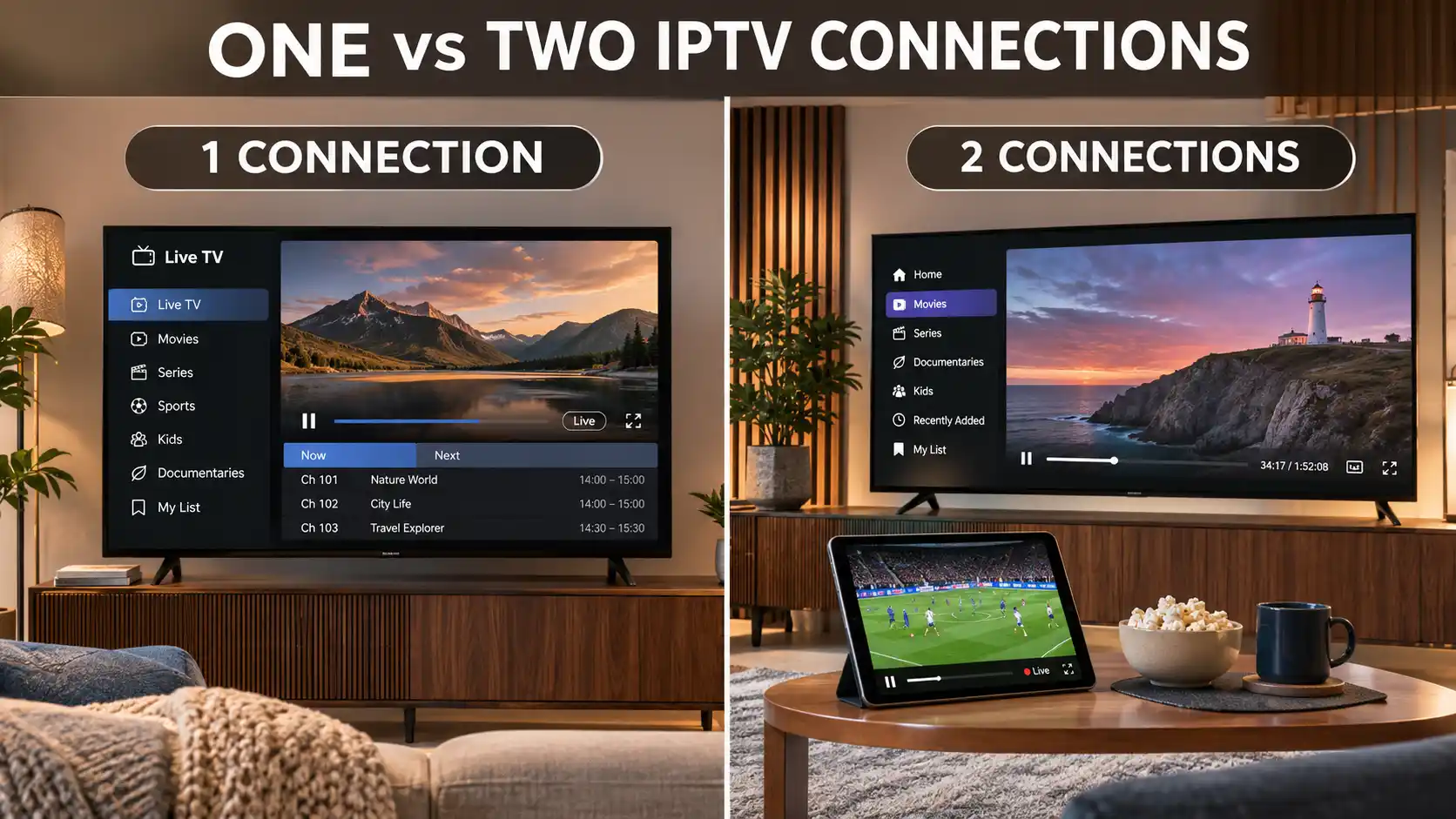
Your subscription should match the number of simultaneous streams you plan to use.
Someone who watches television on one Smart TV may only need one connection.
A household where two people watch different programs at the same time may need a plan that explicitly permits two connections.
Installing an application on several devices is not the same as having permission to stream simultaneously on all of them.
Always check the limits of the plan you select.
For more information, read One Connection vs Two Connections IPTV: Which Plan Should You Choose?.
IPTV is a technology used to deliver television over internet-based networks.
Using IPTV technology on a Samsung, LG or Android TV is not inherently unlawful.
However, access to copyrighted television channels, movies, series and sports events requires appropriate permission from the relevant rights holders.
The presence of an application in a Smart TV app store does not establish that every content provider using that application holds broadcasting rights.
Before purchasing a subscription, verify content authorization for your location and review the provider's terms.
For further information, explore Is IPTV Legal? Laws, Licensing and Streaming Safety Guide.
At IPTVcrowds, customers can explore IPTV subscription options and request information about supported streaming devices, applications, account configuration and connection requirements.
If you own a Samsung Smart TV, LG television, Android TV or Google TV, contact support with your television brand, model and country before purchasing.
The support team can help explain the compatible setup options and current subscription conditions.
Customers should confirm which content categories are available under the selected package and whether the provider has the relevant distribution rights.
Do not assume that every Smart TV model or application is supported without verification.
The best choice depends on compatible applications, authorized content availability, streaming quality, television operating system, connection requirements and customer support.
You can install compatible streaming applications from Samsung's supported app store when they are available for your television model and region.
LG Smart TVs can run applications designed for their supported webOS versions. Check whether the required player is available in the television's app store.
Android applications do not automatically work on Samsung Tizen or LG webOS. Use an application specifically supported by your television or a compatible external device.
Open the Google Play Store, find a compatible application, install it and follow the authorized provider's setup instructions.
Google TV supports compatible television applications available for the device and country. Check the specific application before subscribing.
Roku supports applications available through its own store. Not every IPTV player has a supported Roku version.
The application may not support your operating system, television model or country. Check with the app developer and your provider.
A standalone IPTV player generally does not include premium television programming automatically. Content access normally requires an authorized provider or separate subscription.
An M3U playlist is a file or link format that may organize media stream addresses. It does not itself establish content licensing or guarantee playback compatibility.
Possible causes include unstable Wi-Fi, network congestion, incompatible applications, device limitations and problems with the content source.
It depends on your television and preferred applications. Firestick may be useful when the TV's built-in app store does not provide a compatible player.
That depends on the provider's permitted devices and simultaneous connection limits. Review the selected subscription conditions.
IPTVcrowds currently advertises a $5 trial option. Confirm compatibility, duration and terms with support before ordering.
International programming availability depends on the selected authorized service, geographic rights, supported application and subscription package.
The best IPTV experience on Smart TV begins with choosing the right application for your television.
Samsung, LG, Android TV, Google TV and Roku use different application environments, so it is important to check compatibility before purchasing or installing software.
Focus on supported login methods, stable internet connectivity, useful application features, transparent subscription conditions and authorized content access.
If your television cannot run the required application, a compatible external streaming device may offer an alternative without replacing the entire TV.
Whether you live in the United States, United Kingdom, Ireland, Canada, Australia, New Zealand, South Africa or another country, a suitable streaming setup should match your device and the services available in your location.
Interested in setting up IPTV on your Smart TV?
Visit IPTVcrowds to review the currently advertised subscription options and contact support about compatible devices, installation requirements, supported applications and available package features.
Before selecting a longer subscription, you can also read our IPTVcrowds $5 Trial Guide for information about evaluating compatibility and service features.
Contact IPTVcrowds:
If you want to check your Smart TV setup before choosing a longer subscription, you can review the currently advertised IPTVcrowds $5 Trial.
The trial's exact duration, available programming, connection limits, eligibility and restrictions should be confirmed with support before ordering.
These are advertised reference prices for the base connection option. Additional connection options or changes in pricing may affect the final checkout total.
Before purchasing: Confirm the current price, exact Smart TV compatibility, trial terms, supported applications, connection limits, available programming, geographic restrictions and applicable content rights.
Need help choosing the right IPTV setup for your Samsung, LG, Android TV or Google TV? Contact IPTVcrowds on WhatsApp for information about compatible devices and subscription options.
© IPTVcrowds. All rights reserved.